
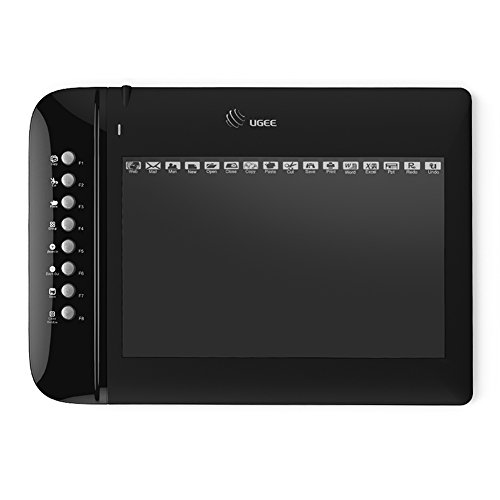
Ugee M1000L 10 x 6 Inch Graphics Drawing Digital Pen Tablet with 8 Shortcuts(Black)
Product Description
Ugee M1000L 10 x 6 Inch Graphics Drawing Digital Pen Tablet with 8 Shortcuts(Black)
- It has a 10 x 6 inch drawing area ,2048 pressure level,4000LPI resolution,200RPS reading rate,you can use it for sketch ,design ,paint or edit in office software
- It designs for both right-handed and left-handed users,the buttons on the pen can be customized to eraser function, you can set in the driver control panel
- It has 8 customized buttons on the left hand side,those buttons can be set in copy, delete, zoom in and out, undo etc function, also 16 expesskeys on top of drawing area
- It shipped with a tablet, a pen which need to put a AAA battery ,a usb cable ,a pen holder which included 8 extra nibs and a pen nib remover
- It can be compatible with Windows XP/Vista/7/8/8.1/10 and Mac OS. And also can work in Adobe Photoshop, Illustrator, Autodesk Sketchbook,Corel Painter,Autodesk MAYA, ZBrush etc software
Specification
Technology: Electromagnetic Digitizer
Active Area: 10 x 6 Inch
Resolution: 4000 LPI (Lines Per Inch)
Report Rate: 230 RPS(Revolutions Per Second)
Accuracy: ±0.01 Inch
Pressure Sensitivity: 2048 Levels
Reading Height: 10mm
Dimension: 350x 260 x 8 mm
Total Weight: 576 g
Supply Voltage: DC 5V
Power Consumption: 0.2 W
Interface Support: USB
Certifications: FCC, CE, CCC, RoHS
System Requirement
Windows/XP/Vista 7/8, Mac OS
Package Content
1 x M1000L Drawing Tablet
1 x P51 Pen(AAA Battery Needed)
1 x Installation CD
1 x Pen Holder
8 x Pen Nibs (Located in Pen Holder)
1 x Remover Pen-Clipper (Located in Pen Holder)
1 x USB Cable (150cm)
1 x User Manual
INSTALLING/SETUP
- Get rid of all other drivers (No other brand drivers, disable Windows Tablet driver, Pen Flicks, etc.)
- DO NOT plug in tablet until drivers are completely installed.
- Get the installation package from the disc or download it from our English official website.
- Unzip the installation package, find the 'setup.exe' driver. (Please DO NOT change the installation directory and install the driver in C drive.)
- Restart your computer.
- Plug in tablet. Wait a bit, and you'll see a little tablet icon in the quick-launch bar. That's tablet driver/settings.
- Open the driver icon, start to take the pressure test. If it is normal, then the driver has been
Technical Specifications
You might also like

Ugee Replacement Nibs for Graphics Drawing Tablet Pen - 10 Pack (Black)

Artist Glove for Graphic Tablet , SENHAI 3 Color Free Size Gloves for Drawing- Blue, Pink, Black
Ugee P51 Stylus for M708/M1000L Graphics Drawing Tablet - Black

CLIP STUDIO PAINT PRO

Manga Studio EX 4
Manga Studio 5
Mudder Tablet Drawing Glove Artist Glove for Graphic Tablet, Art Creation, Pen Display and iPad Pro Pencil (Blue, Pink, Black)
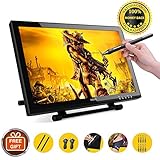
Drawing Monitor Ugee 1910B Pen display Graphics Tablets with 2048 Pressure Sensitivity 19 Inch for Mac and PC

Ugee GL-01 Artist Glove for Drawing Tablet Free Size, 1 Unit for left-handed or right-handed- Black
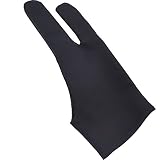
Mudder Tablet Drawing Glove Artist Glove for Light Box, Graphic Tablet, Pen Display and iPad Pro Pencil (Black)